
The mods are optional. The server runs plain Valheim, so you can always join without them: start Valheim from Steam and skip to step 6.
-
Download r2modman
Open the r2modman download page, scroll to Assets and click the file ending in Setup-…exe.
Run it once to install; if Windows asks whether to run it, choose More info then Run anyway. r2modman is a free, open-source mod manager. Pick the plain Setup file, not the .blockmap one below it.
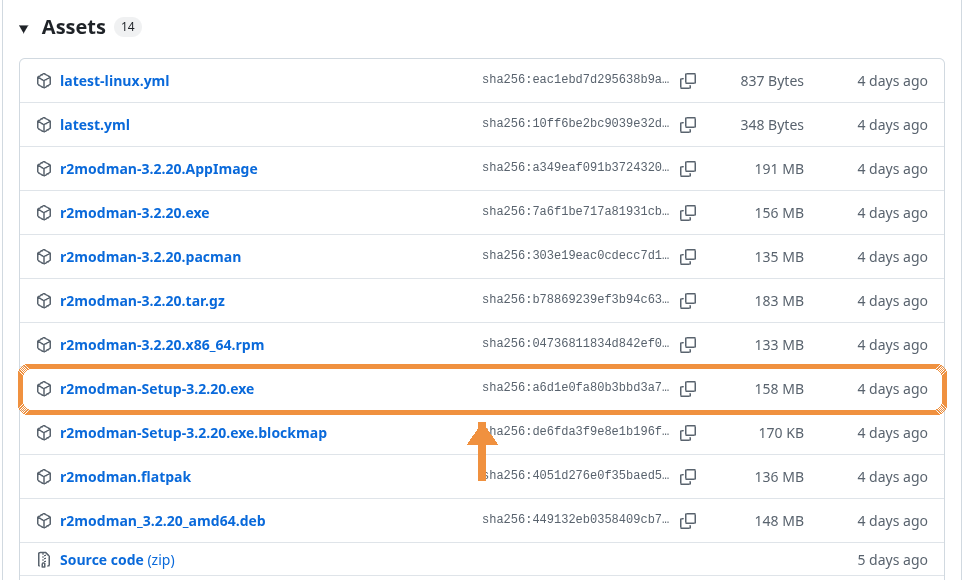
The version number changes over time; any Setup file is fine. -
Pick Valheim
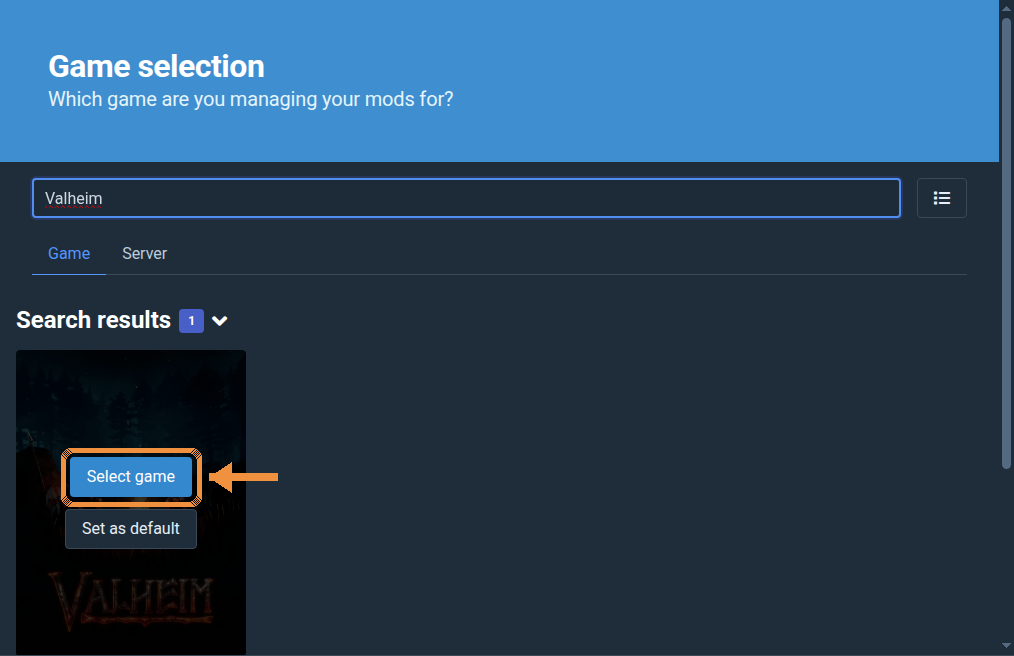
Open r2modman, type Valheim in the search box, hover the Valheim picture and click Select game.
-
Choose Steam
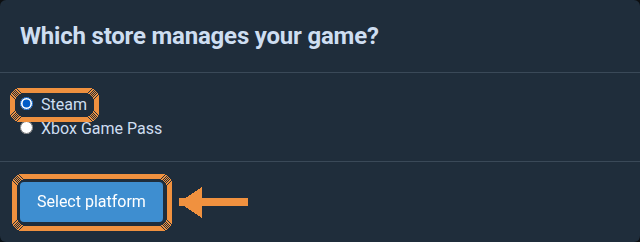
Tick Steam, then click Select platform. r2modman then loads the mod list for a few seconds.
-
Use the Default profile
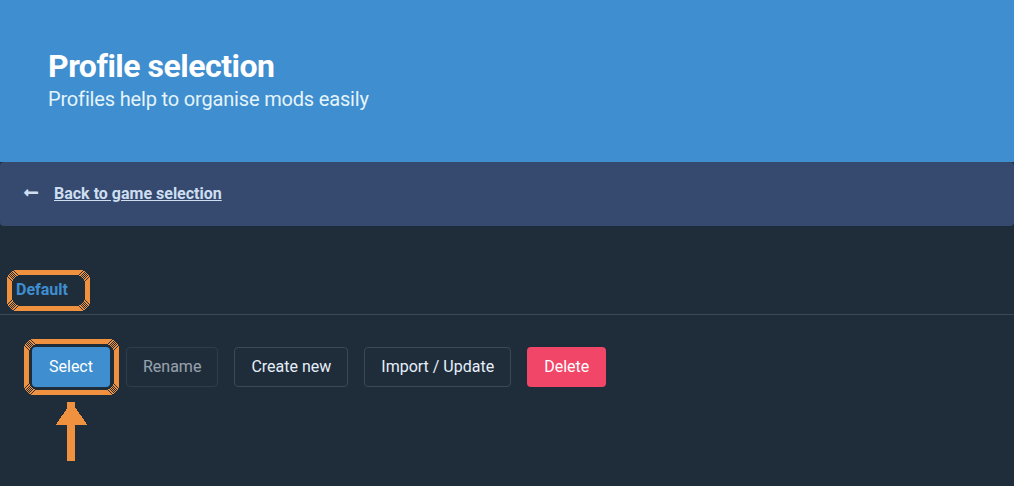
Click Default, then Select.
-
Install the pack
Click Online, search TenthRealm Friends, click TenthRealm Friends Pack, then Download and accept everything it lists.
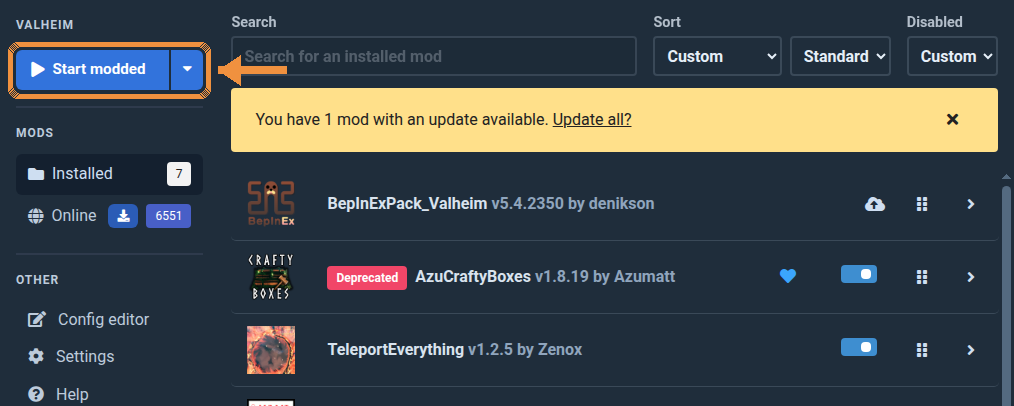
A red Deprecated tag on AzuCraftyBoxes is expected: its author flagged it, and it still loads fine on Valheim 1.0.

-
Start modded, then join
Click Start modded at the top left. Always start the game this way when you want the mods.
In Valheim, pick your character, then go to Join Game, click Add server, paste the join code you were sent, and type the password when it asks.
 Join Game Add server paste code
Getting updates
When you hear the pack changed, open r2modman, go to Installed, and click the small cloud update icon on the TenthRealm Friends Pack row. That keeps you on the same versions as everyone else.
Playing without mods
Start Valheim from Steam as usual. Same world, same join code; you just will not have the extras.
Something looks wrong?
Close the game, open r2modman, and click Start modded again. Still stuck: start from Steam without mods and tell us which step broke.